Blog post

Saturday, March 7, 2020

Back to basics

Today for the first time in a long time I'm taking some time out to research my own tree.
My research today is back to basics, no DNA involved. I'm sticking with one line, finding the gaps in my information, making hypotheses, searching record collections, really reading and thinking about the records found, and citing my sources.
So far I've added in some banns and marriage dates that were inexplicably missing. It looks like I found them back in 2010 so I don't know why I failed to add them to my tree. I've also determined that although they have the same name, height and birth year my John Lee can't be the same person as sallow, pock-marked John Lee.
It feels good to be back to quiet, methodical research where every minor discovery is an achievement!

Monday, July 1, 2019

Blogging milestones

I don't often check my blog statistics, so I was surprised when I realised that Twigs of Yore has recently passed 250,000 page views.

This is what my progress towards a quarter of a million views looked like:

Twigs of Yore pageviews by month

Although they look small now, I was very excited about the spikes that occurred in 2011 and 2012 when I challenged bloggers to write on an Australia day theme. I was even more excited about the volume and quality of responses to my challenge. If you want some excellent genealogy reading take a look at the responses in 2011 and 2012.

Over time readership has gradually increased despite large gaps between my posts.

You might notice the three big spikes in more recent years... I refer to those as the "Blaine Bettinger effect". The "Blaine Bettinger effect" is what happens when Blaine Bettinger mentions a post on Facebook. Those mentions certainly hastened the arrival of the 250,000 views milestone on this quiet little blog!


Saturday, March 30, 2019

Examining my MyHeritage AutoClusters

Compared to other testing companies, MyHeritage has a lot of information about DNA matches displayed on the website. Unfortunately, the information I'm most interested in - the shared matches - is not available as a data download. 

Given the lack of access to the data I was curious to see what the new MyHeritage AutoCluster tool (based on the technology of Evert-Jan Blom from Genetic Affairs) could tell me. I went to the MyHeritage website, set the tool going, and after a time received the results in my email.

The AutoCluster tool applies a clustering algorithm to your DNA shared matches and provides the output as a list and a matrix chart visualisation. On opening the visualisation there is an 'oooh!' moment as all the blocks slide into place. When the process finished, my AutoCluster matrix looked like this:


The goal of this, or any other clustering tool on offer, is to identify groups of people that likely descended from a common ancestor. Those potential groups can be identified by their colour and placement on the chart.


A short guide to reading a matrix chart

  • Names of my matches are listed down the left-hand side and repeated along the top of the matrix (I've blurred them for privacy).
  • If there is a filled block at the intersection of two names (one at the side and one at the top) then those two people are a shared match.
  • Coloured blocks indicate clusters (as defined by the algorithm used).
  • Some people have connections to more than one cluster. Look to the grey blocks to see where those linkages are.
  • If there are a lot of grey blocks between two clusters, then those clusters are probably relevant to each other. For example, the first (red) and fourth (green) groups have several connections between several people.
Before I go on I should say that I have only reviewed my own AutoCluster results. Other user experiences may differ. MyHeritage has made efforts to accommodate all the vastly varying DNA networks of its users when it creates these matrix charts, without requiring users to adjust any settings. That's got to be difficult!

First impressions

The first thing I noticed was that the matrix was very fragmented. That could be representative of my data, but having browsed my DNA matches all those very small groups didn't feel quite right.

I liked the amount of information given for the thresholds used:
"Your AutoCluster analysis was generated using thresholds of 25 cM (minimum) and 350 cM (maximum). In addition, DNA Matches were required to share at least 15 cM with one another in order to be indicated with a colored or gray cell. A total number of 104 DNA Matches ended up in 26 clusters in the final analysis."

Matrix visualisations are limited in how many matches they can include in one view and still be readable. Filtering is necessary to limit the matches. The automatically selected thresholds seem reasonable.

I appreciated the list of 11 matches who had no shared matches at the thresholds used.

I was perturbed by the exclusion of 95 matches who both met the threshold and had shared matches:

"The following 95 matches met the inclusion criteria but ended up in singleton clusters without other members and are therefore excluded from the analysis as well."
95 matches in "singleton clusters"?! Why are there almost as many matches excluded for "singleton clusters" as there are matches actually included in the matrix? Just how aggressively does the algorithm chop up the groups?

As I read the long list of matches that had been excluded I was taken aback to see that my second closest match, at 129 cM shared, was among the "singleton clusters".

Digging deeper: A new view

If you've been following my blog, you'll know that network graphs are my favoured tool for understanding shared match relationships. Using the csv file provided with the output, I was able to wrangle the data into shape and create a network graph version of the AutoCluster matrix information.

I've aligned the group labels and colours with the matrix display (but made the second and third use of each colour darker for clarity). The numbers indicate the group in the AutoCluster result reading down the diagonal. The dot sizes reflect the amount of DNA I share with each person. Each line is a shared match relationship (the lines here are equivalent to the blocks in the matrix chart).

This was the result.


Looking at this graph, I retain my first impression that the algorithm is heavy-handed in breaking up the groups. For example, groups 1, 4 and two elements of thirteen look like they should be together, as do 24-25, and 3-19-22.

I'm relaxed about which group the closer match in group 11 is allocated to. That person would naturally "belong" in more than one cluster as they would likely match with groups of people with more distant ancestors from each side of our shared branch.

With this view, I also see that there are a few 'strings' of small groups. They include matches for whom, without more information, inclusion in one group or the next would be equally valid. That can't be helped when working with shared match information alone but is a reason to take care when looking at small groups in a matrix layout and track back to any other connected groups.

There is huge potential for refinement of matching groups with the data MyHeritage has - and that I'd like to get hold of as downloads! Information about the total size of the match between pairs, and whether the matches have a triangulated segment could be very informative to group allocations.

How would this have looked if the other 95 matches were included? I suspect that the sensible breakup of some of the smaller groups would be clearer for a start.

Digging even deeper - segment data

Looking at the network version I created, my impression is that groups 1, 4, two people from 13 and my closest match in group 11 are connected densely enough that they should really be a single group. 


One of the website tools that I like on my MyHeritage is the chromosome browser tool. I entered the names of matches in my proposed larger group into the tool in batches. I both started and ended with my closest match. The result was clear. All of the matches I identified had triangulated segments with me and each other on chromosome three. (I couldn't find one match from group 4 in my match list to make that comparison). 

I also checked the other members of groups 13 and 11 (outside the circle above). None of them had a shared segment with me at that location.


As an aside, some of the pairs don't show as matched in the matrix or network graph (based on the matrix data) even though they clearly triangulate on a reasonably sized segment. This is because some of the pairs match at just below the total matching threshold that was used to filter the graph. This is a point to be aware of when interpreting any shared match information, or indeed any DNA information where some sort of threshold or cutoff has been used.


Conclusions

I have only reviewed my own results and they may not be typical of most users. There seems to be an overly aggressive breakup of groups. This has made the chart fragmented and harder to read and interpret than it otherwise would be. 

The excessive fragmentation of groups is also likely the reason that almost half of my relevant matches were assigned to "singleton clusters" and excluded. Some of my best and most useful matches have been excluded. I'm concerned that the baby has been thrown out with the bathwater here.

When using AutoClusters I would suggest that users should:

  • Read the notes. Take note of who's in and out.
  • Use the grey cells to check for connections between groups.
  • Don't assume that the matrix will include your best and closest matches. They could be excluded!
Remember also that the result reflects only a small proportion of your matches (less than 2% in my case). There is no doubt much more to be found in matching results. I've written to MyHeritage in the past and asked that they consider allowing downloads of shared match lists (including shared match cM amounts). This would allow for analysis and clustering of more matches and for different clustering techniques to be used for those who want to do their own analysis.

Overall though my feeling about the AutoCluster tool is that something is better than nothing. The AutoCluster tool is a helpful way to start identifying groups at the top end of your match list, but caution is needed.  

Friday, March 15, 2019

My Thrulines improved! I doubt it was due to me


It’s true! Five days after messaging corrected information to other people with my Ancestor in their tree, my AncestryDNA Thrulines have improved. I no longer see my carefully researched Ancestor replaced with a ‘Potential Ancestor’ from other trees, who never actually existed.


While the desired result has occurred, I can’t claim that my experiment was anything to do with it. Out of the seventeen messages I sent, just three people responded (with thanks) and said they would update their trees.

Thrulines is a beta feature that is constantly changing. For example I noticed when I logged in today that my ancestors were now grouped by generation (nice!). I’m wondering if maybe Ancestry has listened to user feedback and changed who they choose to display. Either way, I prefer what I am seeing now and a few interested people have better information for their trees, so it’s a win-win.

Sunday, March 10, 2019

Can I improve my Thrulines?


AncestryDNA’s new beta feature, Thrulines, takes the work out of cobbling together your DNA matches’ trees to try and work out where your connection is. Overall, I think it’s great! It has come up with connections that would have taken me hours to work out on my own.

Of course, it doesn’t always get it right.

I have one particular ‘Potential Ancestor’ suggestion that I know to be incorrect. What’s worse, it suggests replacing my good information about that ancestor with bad.

AncestryDNA Thrulines 'Potential Ancestor' card stamped 'Do not copy' and 'Denied'
Sorry Edward Flower Darcy, you never existed.

Some might get upset about a suggestion to replace careful research with something incorrect. I can’t say I’m one of them. I do my own research before adding anything to my tree and if a hint isn’t right, I ignore it. I had that incorrect name in my own tree for many years and know it came from a death certificate, reported by a child who would never have know their grandparent. Due to people marrying at unexpected times, and dying in unexpected places, the correct information wasn’t easy to find.

While I’m not upset, I would prefer to be given good hints. There are about 10 Ancestry trees with the old information for each Ancestry tree that has picked up my new research.

I wonder what the tipping point is for Ancestry to shift its suggestion?

As an experiment, I’ve sent a friendly message to 17 people who have the incorrect information in their tree and given them corrected information. It will be interesting to see how many respond to my message, and if the Thrulines suggestion changes.

Friday, February 1, 2019

Genealogy Selfie Day: Me and My Tree

The first of February is genealogy selfie day, apparently. Selfies are not one of my skills, but here goes!

This is me in front of a big B0 size printout of my tree. I had it printed a few weeks ago, put haven’t put it on the wall yet. It’s held up here by two not-entirely-willing children. Given the mood of my assistants, I only had one shot at the picture. This was it.


This is an update of the chart I created back in February 2015 but only put on the wall in 2017. I had been adding new names to the ‘treetops’ by hand as I discovered them. It was nice to see the tree growing on the wall! But time for an update.

I created the new chart using Family Historian software and ordered plan printing online from Officeworks. Plan printing is much cheaper than poster printing for the same size of document. The document has to have a low enough ink-to-paper ratio to qualify – a simple family tree chart like this qualifies easily. Because it doesn’t cost much to print, I could afford to experiment.

I included quite a lot of text for each person, occupation symbols, portraits if I had them and a few interesting pictures.  Next time I would make the text bigger. It’s going to be hard to read when it’s up on the wall. The portraits of each person worked out well enough for this purpose, the other pictures not so much.

Sunday, December 2, 2018

Connected DNA

I’m excited to announce that Connected DNA is open for business!

image

What is Connected DNA?

Connected DNA is the place to go if you would like me to create a network chart of your DNA matches.

I’ve spoken before about network charts and how useful I find them for sorting out and making sense of my DNA matches. While my series of posts with instructions for how to do it yourself are still popular, not everyone has the time or inclination to go through the process. 

Now, I can do it for you.

I hope that you will visit Connected DNA and see what’s on offer. To keep up with new products as I develop them please ‘Like’ the Connected DNA Facebook page. At present I offer charts based on Ancestry DNA data for a single profile, or for any number of full siblings. I intend to expand the products offered to other sources of data and novel combinations of profiles (truly customised to your unique needs!) – among other things – in the not-too-distant future. 

Meanwhile if you want a map of your matches for Christmas you’d better get in quick!


This blog, Twigs of Yore, remains my personal genealogy blog. I intend to continue blogging here from time to time about my own research progress and whatever genealogy topic takes my interest.

Friday, June 29, 2018

AncestryDNA Shared Match Quiz: Results

Have you tried the AncestryDNA Shared Match Quiz? If not, give it a go. The results will still be here when you come back.

If it made your head spin, don’t despair. You were not alone.

Total score

As at this morning, there were 812 valid responses to the quiz. Of these, 465 scored less than 5/10. Only 13 responses scored full marks. It appears I’m a tough quizmaster.

image

Results by question

Questions 1 to 5 considered shared matches with an estimated 4th or closer cousin. The questions were:

Betty is your estimated "3rd to 4th" cousin and shares 153cM with you. When you view her match page, you see three shared matches.

1. How many matches do you and Betty share in total? That is, how many people who appear anywhere in your full match list also appear anywhere in Betty's full match list?

2. Of the three shared matches on Betty's match page, how many share at least 20cM with you?

3. Of the three shared matches on Betty's match page, how many share at least 20cM with Betty?

4. Betty logs into her account and looks at your match page. How many shared matches does Betty see?

5. Betty logs into her account and looks at your match page. How many of them are the same people you see?

These were intended to be the easiest questions, and the results showed that generally speaking they were. Even so, only around 60% of respondents answered question 1 correctly. Question 1 tested if the respondent knew that there was a limit on the shared matches shown, without requiring knowledge of what the limit was. That’s around 40% who did not provide a correct answer.

image

Questions 6 to 10 looked at shared matches with a distant relative and his daughter. The preliminary instructions said to assume that the shared DNA estimates are accurate and that the trees involved don't have intermarriage or additional coincidental relationships.

John is your estimated "5th to 8th" cousin (actually a 6th cousin). He shares 8.3cM with you. On his match page you can see five shared matches.

6. How much DNA does the most distant of those five matches share with you?

John's daughter, Jane, has also DNA tested with Ancestry. As his daughter, she is John's closest match. Jane is a DNA match to you. 

7. Still thinking about your view of John's match page, assess this statement: Jane is the top entry in John's shared match list with you.

8. You see Betty (your third cousin, shares 153cM) when you look at John's (your 6th cousin, shares 8.3cM) shared match list with you. How much DNA does John share with Betty?

9. If Betty logged in to her account and looked at YOUR match page, would she see John in the shared match list?

10. If Betty then navigated to John's match page, would she see you in the shared match list?

Question 6 required application of the knowledge that there’s a threshold. Questions 7 and 8 required application of that knowledge together with the concept that while a threshold includes some relationships, it excludes others. Questions 9 and 10 were intended to be the most difficult as they took the same scenarios but considered them from the point of view of the DNA match. Overall, questions 7 to 10 had a lower share of correct answers submitted, at around 25% for each question.

I was curious to see which questions tripped up people with high scores. The results below are only for responses that scored 7, 8 or 9.

image

I had expected question 9 or 10 to cause the most problems, but question 7 won that prize. To answer correctly, respondents needed to know that if two matches were distant to them, they would not see a shared relationship between the two distant matches, no matter how closely related the two distant matches were to each other.

I wrote this questions because I’ve come across a similar situation – and been confused by it! – when working with my own matches. The situation I faced was identical twins who didn’t show up as shared matches. The reason seems obvious to me now, but had me scratching my head at the time.

I plan on leaving the quiz open indefinitely, so if you ever wish to go back and try again it will be there.

Friday, June 22, 2018

Quiz: AncestryDNA Shared Matches

AncestryDNA shared matches have some quirks that can be confusing.

Do you understand which shared matches relationships are in, and just as importantly, which are out?

Test your knowledge with this quiz!


Wednesday, March 14, 2018

Congress 2018 wrap-up

Four days - a busy blur of conference sessions and group gatherings for meals or photos. Now Congress 2018 has ended, and hundreds of delegates have returned home. I expect that like me they were sad to see it end, but ready for a break and a chance to put all they’d learnt into action. Conference tag with ribbons attached, string of beads.

There was a good selection of both local and international speakers, but the speakers are only part of the experience. Jill Ball of GeniAus did an exceptional job of extending the community spirit and camaraderie that exists among genealogy bloggers to the non-blogging conference goers. Or at least that’s how it appeared to me, and I hope that’s how they felt about it!

I caught up with friends I had met online or at the Canberra conference in 2015, with my cousin who was also attending, and also made/met some new friends. I don’t want to name names or I will be sure to leave someone out.

I delivered my presentation on Visualising DNA Matches with Network Graphs on Sunday evening. The conference started on Friday so there were three days for my nerves to build, but also three days to settle in and feel like part of the genealogy community. Several people told me afterwards that they were keen to try graphing their DNA matches, or spoke to me about the insights they had already gained through doing so.

I’ve run through my notes and made a list of things to try, or thoughts to hang on to. Some of my top items:

  • Need to investigate the journals section of Trove.
  • Possible purchase: Farewell my Children by Richard E Reid (after hearing Pauleen Cass talk)
  • Why don’t I have a copy of Phillimore’s Atlas?! Must fix that (several talks prompted this thought).  
  • Need to take a proper look at DustyDocs.
  • Judy Russell (The Legal Genealogist) provided links to sites with public domain photos – bookmark them.
  • Freemason records! Now that I’ve learnt more about these I definitely want to follow up on the Freemasons in my family. 
  • Lewis’ gazetteer – get hold of that too.
  • Lisa Louise Cooke spoke about using Google Earth Pro. I realised I already have it on my computer and promptly lost several hours playing with it. She said that would happen…
  • A couple of blog tweaks I should probably make after hearing Jill Ball talk about Beaut Blogs.

One of the highlights was meeting international speaker, Judy Russell (The Legal Genealogist).

Shelley Crawford and Judy Russell

This is one of the few photos I have of people – I really should have taken more. Between lunches, dinners, group photos and other get togethers it felt like I had taken a million, but apparently not.

It was very disappointing to hear that none of the Societies have put their hand up to host the next Congress. I hope that we will hear good news on that front soon. I will be more than ready to go to another conference in three years from now.

Saturday, March 3, 2018

Triangulation is the icing, not the cake

I’m seeing more and more DNA network graphing activity going on. I’m so pleased to see that there are tools being developed to make this type of approach widely available.

One concern I have with these new developments is the exclusive use of “triangulated” segments to link between two DNA matches. By triangulated segments I mean segments of DNA that you and two of your DNA matches all have in common.

Don't get me wrong - triangulation is a very good thing. If you have a triangulated DNA segment, there’s a very good chance that all three of you inherited it from the same ancestor (whoever that may be). Sticking to triangulated segments only is appealing and seems an intuitively sensible choice – they provide a degree of confidence because you know that the relationships you see are relevant to your ancestry.

My contention is that the addition of DNA relationships that don’t have triangulated segments is essential to find groups of mid range – say 2nd to 4th - cousins descended from a common ancestor among a set of matches.

The triangulated view

Below is a layout of triangulated segments extracted from Gedmatch using the Tier 1 triangulation report (chart produced with Gephi). Many of the groups here – particularly the large groups – are very distant relatives.

Notice the four pink dots? They are known cousins who all share a common ancestor. They match me and each other in the 1st cousin once removed to fourth cousin range. Only one of the six possible pairings of the four shows a triangulated segment! And that line is between the two more distant (to me) matches. If I didn’t know that all four of them had a common ancestor there would not be much in the chart that compelled me to pursue how those four people match.

Chart showing distinct separated clusters of dots and lines

The untriangulated view

Below is a different view of the data, taking a different approach.

Here I added in shared match information from Gedmatch’s “People who match one or both of two kits” report for all my matches over 20 centiMorgans (cM) . This includes pairs of matches without any triangulated (with me) segments. In the chart I have limited the matches shown those who share 20cM with me AND with each other. This is similar to but slightly more inclusive than Ancestry’s thresholds (there’s another post in what Ancestry does that I may write one day).

  • The blue lines indicate the match pair has at least one shared segment in common with me.
  • Grey lines indicate that the people at each end of the line match each other, but there is no overlap of segments between the pair of matches and me.

I needed to limit the connections between people on the amount of DNA they shared with each other in order to stop the number of links in the chart from becoming ridiculous – and I have no known endogamy.

I should also mention that in both these charts, thicker lines indicate larger shared cM amounts between the pairs of matches. The thickest lines are parent/child or sibling relationships. The size of the dot reflects the relationship with me. Larger dots are closer relatives.

Chart with sparse but interconnected dots and lines, with a few distinct clusters

Quite a different picture. While I’ve lost a lot of distant matches, there is now the suggestion of a grouping with my known cousins. The chart is more interlinked – some of these links may be coincidental relationships nothing to do with my tree.  I would look upon single links between clusters with suspicion but not dismiss them entirely.

There are some some clusters entirely made up of “untriangulated” match pairs including relatives closer than 20cM to me who do NOT show up in the triangulated only version above. These are clusters that are close enough that I might be able to determine the common ancestor with a little digging. 

Is what I am seeing with my four cousins a one-in-a-million random chance occurrence?Chromosome browser view with blue and orange segment markers that don't overlap

I don’t think so. I suspect that there’s a higher chance of relatives in a researchable timeframe not sharing a triangulated segment than one may imagine.

Here’s another example – a Family Tree DNA chromosome browser view of two people who share one great-great grandparent with me. They are more closely related to each other. There is ample paper and other DNA evidence to say that the relationship is correct.

No stacked blue and orange lines = no triangulated segments.

Once again, if I didn’t already know about it, a connection between these two people is exactly what I would want to find in my data.

I would be interested to know if readers can find further examples of close matches that don’t triangulate in their data.

So if triangulated matches between closer relatives are so hard to come by, why those big clusters of distant triangulated relationships?

As each generation passes, you are less likely to inherit DNA from a particular ancestor. For a very distant ancestor you may have only one segment, if any. Each ancestor, however, has on average an increasing number of descendants with each generation. The chances of another descendant having the same inherited segment as you are slim… but there are a lot of other descendants. A small fraction of them do inherit that same segment. If they DNA test, they all match in common with each other on that one segment and become a cluster in the chart. You can see it when you look at the chromosome data for the matches in a big cluster – they all match in a big stack at one location.

Keeping only triangulated segments is cleaner and increases the chance that the relationship you see is due to a shared ancestor – but that doesn’t necessarily make them more helpful for research. There is a risk of losing close match information that could be researched, for the sake of distant match information beyond paper trail timeframes.

Finding the balance

A compromise position that trimmed off untriangulated relationships for distant relatives, but kept them where there was a close relationship, might be the answer.

The version of the graph below uses the same thresholds as the untriangulated chart (20cM shared with me, 20cM shared between match pairs), but then adds in all triangulated segments between pairs of people who each share 20 cM or more with me. This adds in a few more matches, and the addition of the less close triangulated lines support some of the untriangulated clusters. I now have a good picture of that group of four known matches in pink. There is a winding path of untriangulated matches connecting several of the triangulated (and untriangulated) groups. While they complicate the picture they do alert me to the possibility that my tree may have intermarriage that I’m not aware of. It’s messy, but not necessarily a bad thing.

Network chart showing interconnected lines, with a moderate number of distinct clusters

DNA products and datasets

I would like to see DNA matching datasets (or products made from them) with as many as possible of the following attributes:

  • Inclusion of close in-common-with relationships that don’t have triangulated segments.
  • Data on the strength of the total connection between pairs of matches (ie or edge filters using this information).
  • Ability to distinguish between match pairs with and without triangulated segments.
  • Ability to set different thresholds for triangulated and non-triangulated edges.
  • Inclusion of total match size for each match.

Triangulated segments are the icing, not the cake.

I hope that as more products and data extraction capabilities are developed some of these ideas will be incorporated. You can help by giving developers a push along these lines when you provide feedback about their products.


Friday, February 23, 2018

Getting ready for Congress 2018

The biggest event on Australia’s genealogy calendar is the triennial Australasian Congress on Genealogy and Heraldry and it’s only two weeks away (Friday 9 to Monday 12 March).

Travelling to another city to attend a genealogy conference takes time and money, and if you don’t know anyone it’s intimidating. Perhaps that’s why I had never felt moved to attend until three years ago when it was was held in my home town. I enjoyed the conference immensely and got a lot from it. After that experience, I had no doubts about going to the next one.

There are going to be two big differences (that I know about) between my experience this time and last time. First, I’ll need to travel. Second, this time around I’ll be speaking at the conference which adds a few substantial to-do items and I’m sure will give me a new perspective on the event.

I’ve been reading Jill Ball’s (aka GeniAus) posts about preparing for Congress (and other conferences) with interest, and adding relevant items to my own checklist.

Let’s see how I’m doing with preparations:

  • Conference Registration: Done, as soon as registrations opened. I also paid for a seat at the conference dinner.
  • Work: Leave request submitted and approved.
  • Family: Leave request submitted and approved.
  • Accommodation: Booked and paid for. I’ve arranged to share rental of a small house near the venue with two other genealogists. It’s going to be fun!
  • Travel to Sydney: Booked. Although I usually prefer to take the train, this time I chose the bus. It’s quicker, a little cheaper, but most importantly the timetable is more flexible. I can return home at a civilised hour and get to work the next day in a fit state to do some work.
  • Travel within Sydney: I’m close enough to the venue that I will be able to walk. I’m sure I’ll appreciate a bit of exercise at the start and end of each day. I already have an Opal card from previous visits to Sydney for when I need to use public transport.
  • Devices: I’m planning on taking my phone and my laptop. I need to make sure any information I might want is synced to the laptop. Still to do.
  • Note taking: While I like technology for storage, I prefer to take notes on paper. I have a Whitelines note book with a hard cover that I plan to use. The pages are light grey with a white grid, and it comes with an app that will hide the grey background, resize and sync to wherever you want online. It will be easy to keep a soft copy of any of my scribbles that I think are worth keeping.
  • Contact cards: I’ve had a small batch of business cards printed up with details of this blog, various contact details for me, and family surnames I’m researching.
  • Blogger beads: If you’re not a blogger, you might not be aware of the trend at US genealogy conferences for bloggers to wear identifying beads. Jill Ball has imported this to Australia and it’s a fun way to break the ice at events. I’ve put my hand up for some. Thanks Jill!
  • Clothing: It’s too soon to pack my bags, but I’ve invested in some new comfortable shoes that I can test out and break in before the day. I’m not too worried about attire for the conference days, but I still need to work out what I will wear to the conference dinner.
  • Speech: I’ve submitted my handouts and slides to the organisers. All I have to do is continue to practice – and keep an eye on developments relating to my topic.

I think I’m as ready as I need to be at this stage.

Let the countdown commence!

Wednesday, January 3, 2018

Visualising Ancestry DNA matches-Part 10-Colour Coding

This is the tenth part of a series of posts about visualising Ancestry DNA matches with network graphs. You can find the index to the posts here. In this post, I’ll show you how to colour code your matches.

The material in this post is what I have been most looking forward to showing you. There is so much you can do with colour coding! I’ll provide a few ideas and examples, but would love to see what else you come up with. Tell me about it in the comments, or join the freshly minted Network Graphs for Genetic Genealogy Facebook group here

What information can I colour code on?

You can colour code on whatever you want! If you can get it into a column you can colour code on it. For a start, here are some ideas with no data manipulation required (although you may need to load extra columns from your matches file):

  • Starred matches. Where do those people you were interested in fit?
  • Viewed matches. Immediately spot critical new matches.
  • Shared ancestor hints. Have you checked them all out?
  • Numerical information – eg SharedCM, Shared Segments – can be used to create a heat map to help spot clusters of closer or more distant matches.
  • Manually add a column with the branch that a known matches belong to, and colour code on that. This can help to identify clusters from a particular part of your tree. I recommend only colouring matches that you know for sure belong to a particular branch.

If you’re able to use Excel or a database tool to manipulate the data yourself, even more options are available. For instance I have found it very useful to download the ‘ancestors’ file (using the DNAGedcom client) which contains a lists of ancestors for your matches who have their DNA connected to a public tree:

  • Matches with a particular surname or surnames in their tree.
  • Matches with a particular place or places in their tree.

These examples don’t work so well with names like “Smith” – but are fantastic for finding clusters with less common names or from a particular region.

Get the settings right

Colour by vertex

The default setting, once groups have been created, is to colour by group.

In order to apply colours by person, we’ll need to tell NodeXL to 'colour by vertex’ instead.

  • NodeXL Basic ribbon  >  Groups  Group Options…
    image
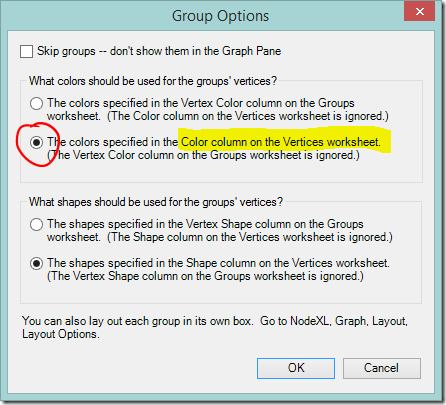
  • Select “The colors specified in the Color column on the Vertices worksheet”
    image

At this point all the dots will change to the default Vertex colour (black). If you want to return to group by group colours you can change back at any time by selecting “The colors specified in the Vertex Color column on the Groups worksheet”.

Prevent the nodes from moving 

Each time when you change the colours you will need to refresh the graph to apply the change. The chart layout will be applied again, and the nodes will move.

If you like the nodes where they and don’t want them moving about you can keep them in place:

  • Set the layout algorithm to “None”

OR

  • Highlight the nodes of interest and click the Lock button to lock them in place.

    image
    (highlight them and click the Key button to allow them to move again when you refresh the layout, if desired).

Applying colour a few nodes at a time

Manual methods are useful if you only want to apply colour to a few nodes and don’t want or need to switch between different colour schemes.

The easiest method is to select a node or nodes from the chart using the Select tool.
image

  • Select the nodes of interest.
  • Choose a colour using the colour picker on the NodeXL Basic ribbon.
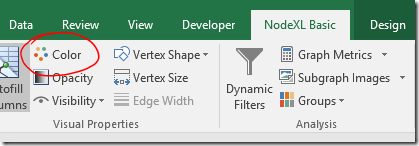
    image
  • Click the Refresh Graph button to apply the changes.

OR

Enter a colour directly into the ‘Color’ column on the Vertices worksheet. If the column is not already visible you can show it both the Edges and Vertices worksheets via the NodeXL Basic Ribbon > Workbook Columns button.

In the Color column:

  • Right click and selecting a colour using the “Select Color” menu option, or
  • Type in an RGB colour reference in the format R, G, B. For example, 0, 255, 255, or
  • Type in a CSS colour name. For example, DarkSeaGreen.

Click the Refresh Graph button to apply the changes.

Apply colour in bulk – the real fun begins!

Applying colour (or other formatting choices) in bulk is very easy. If it’s in a column, you can colour code with it. It doesn’t matter how that information was entered in the column – loaded in, typed, derived by a formula – or what type of data it is. Pick one of the ideas I listed at the start of the post, and try it out.

  • Apply colour via the Autofill Columns button on the NodeXL Basic ribbon.
    image
  • If you have previously applied colour (whether manually or by using this control) choose the option to “Clear Vertex Color Column Now” to start fresh.
    image
  • Select the column to code on from the Vertex Colour dropdown box.
  • Check the settings under “Vertex Color Options….”.
    If you are colour coding on text values choose “Categories” from the dropdown box at the top left and click OK.
  • If you want to colour code using a numerical scale, choose “Numbers” and more options will appear.
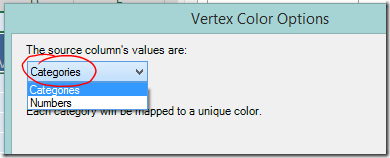
    image

View the legend

Once of the useful features of automatic colour coding is that NodeXL will generate a legend for you.

  • Show the legend at the bottom of the chart, via the NodeXL Basic ribbon > Graph Elements button.
    image

Change default node colour

Unfortunately NodeXL doesn’t allow you to choose the colours applied to each category. The first colour used is always a dark blue, which on my monitor is hard to distinguish from the default colour of black. It’s possible to change the default colour using the graph options.

  • Click the Graph Options button
    image
  • Select a new colour by double clicking the colour swatch on the Vertices tab.
    image

I encourage you to explore the other changes to default settings that are possible.


Example – Categories

Applying colour codes to categories really is as simple as selecting the column in a drop down box. This is a quick example of the type of investigation possible. Don’t forget – before you add new colours always use the option to clear the colour column or you might mix up your schemes.

Colour code matches with known branches

I manually added a column to the Vertices sheet labelled “Branch” and entered a surname indicating the branch for each person where the common ancestor is known. Then I clicked Autofill Columns and set my new Branch column as the vertex colour. My DNA results have a lot of very small groups. I can now easily see which branch six of them are connected to. It’s a start!
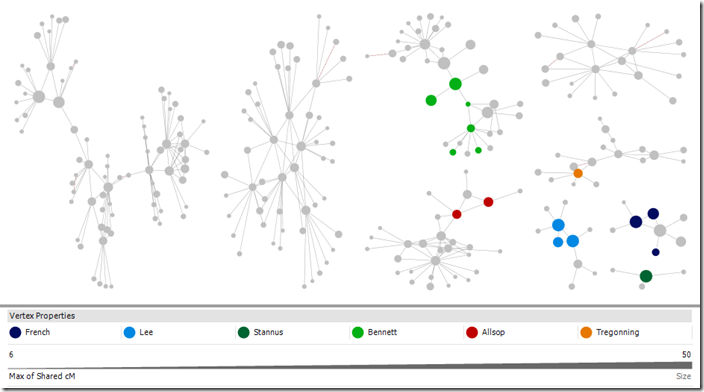
image
Kit with 125 4th or closer cousins (more distant cousins included in chart), cluster by connected component, Harel-Koren Fast Multiscale Layout with each group in it’s own box. Selected groups.

Colour code by side

I loaded both my own and my father’s matches into one file and then used a formula to mark each match as “Paternal” or “Maternal” in a new column depending on whether they shared DNA with my father. When I colour coded on the new “Side” column I could see that there was a clear division between groups, with a few strays. (Selected larger groups are shown for the sake of illustration).

This works with my tree as my branches are not inter-related and are generally from distinct populations. With a more interrelated tree it may highlight groups where it would be dangerous to make an assumption about side.

DNA matches colour coded by side (maternal, paternal)

image
Kit with 125 4th or closer cousins (more distant cousins included in chart), cluster by connected component, Harel-Koren Fast Multiscale Layout with each group in it’s own box. Selected groups.

Colour code a place

Now I want to see if I can dig in further.

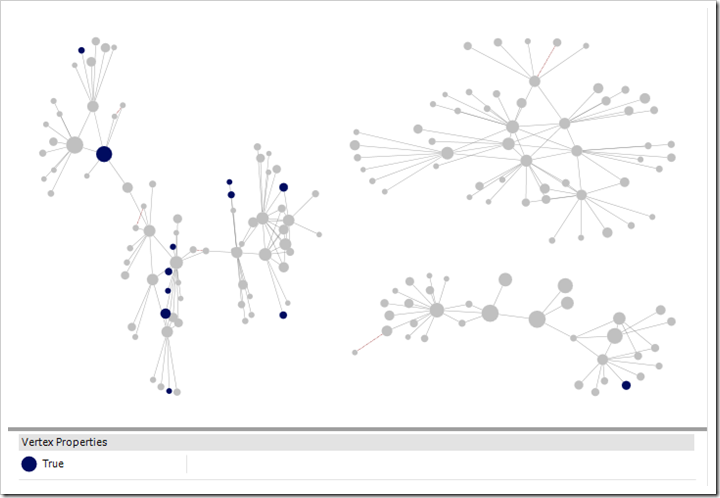
Once quarter of my father’s tree is from Cornwall. Many people have Cornish ancestry and following up on every possible Cornish lead could take me on any number of wild goose chases. Instead, using the ancestors file downloaded using the DNA Gedcom Client, I created a list of matches whose ancestors were born or died in Cornwall.

While there was an occasional individuals highlighted here and there among my groups, one group stood out. This was a group where I had not confirmed any of the relationships – the only clue I had to go on is that they are matches to my father.

I would not expect every dot in a group to be coloured as not all matches have public trees on Ancestry. If you have made a list with places or names using the ancestors file, try also searching your matches on Ancestry itself. Chances are there will be some private trees among the results. You can add their matchIDs to the import list and make use of that information.  Yes, you read right. This is a way to squeeze some information from private trees!

Note also that only one of my closer matches is marked blue indicating Cornish ancestry in a public tree. It was the trees of distant matches, which I may never have looked at otherwise, that made the difference. 

DNA matches who have any ancestor born in Cornwall highlighted
image
Kit with 125 4th or closer cousins (more distant cousins included in chart), cluster by connected component, Harel-Koren Fast Multiscale Layout with each group in it’s own box. Selected groups.

Example – Numeric information

In earlier posts we used the SharedCM column to size the dots, so that closer relatives would have bigger dots. The human brain, however, is more able to pick out colour differences than size differences, so if you are focusing on groups around your closer matches, a heatmap type display might be useful.

We can use colour to make those close cousins stand out more – the eye tends to be drawn to warm colours. In this example, closer relatives are more orange and more distant matches will be a deep purple/blue.

  • Click the Autofill Column buttons.
  • Set the Vertex colour to sharedCM. 
  • Click the options button and choose Vertex Color Options…image
  • Select Numbers in the dropdown.
  • Click Swap Colors so that closer matches will be more orange.
  • As I wanted all distant cousins to be blue I set the smallest number to 20cM.
  • I wanted all estimated 2nd cousins to be strongly orange, so I set the other extreme to 200cM.

image

I used a kit with more interconnections that my own. The result is below. In this kit there are two groupings of closer cousins. The cousins in the centre of the graph have more connections, while relatives of the group on the left seem to be less well represented in the DNA testing population.

DNA match heatmap – closer cousins are more orange

image
Kit with 470 4th or closer cousins, cousins with <15cM shared excluded, Harel-Koren Fast Multiscale Layout to set start positions, followed by two applications of the Fruchterman-Rheingold layout with repulsive force 1.0 and 3 iterations to increase the visual definition of the groups. Smaller unconnected components displayed separately at the bottom of the screen.


Where to from here?

This is the last post I have planned in this series focusing on Ancestry and NodeXL, but I doubt it will be my last post on the subject of network graphs. I’ve created a group on Facebook for discussion of Network Graphs for Genetic Genealogy. If you would like to have a conversation about what you’re doing with network graphs as they apply to genetic genealogy (regardless of the source of DNA matches or software used!) please comment below or better yet join the Facebook group.

Tuesday, August 22, 2017

Researching Abroad Roadshow–Canberra

Yesterday I attended the Researching Abroad Roadshow. Canberra’s event was one day only, with the British Isles and German/European streams running in different rooms.

I chose the British Isles stream, as it reflects my ancestry. We started the day with Scottish land records, and Scottish research resources before 1800 and after lunch moved on to Irish family history resources online and “Down and out in Scotland”.

When a speech focuses on types of records there’s a danger that the presenter will spend a lot of time rattling off lists. I’ve seen it happen before. Fortunately, this this was not the case yesterday. Chris Paton was an engaging speaker with plenty of examples that related the records back to the real people and events they describe.

I had looked at some of the resources that were covered before, but not in any depth, and others were completely new to me. I now feel that I have a head start on knowing where to look and what I might find when I’m ready to dig into Scottish and Irish research. Learning how to pronounce all those Scottish and Irish words might take a bit longer!

Chris very kindly indulged me with a quick selfie as he was racing off for the airport.

selfie

The Roadshow has two more stops, in Adelaide and in Perth. Get to it if you can!


Disclosure: In return for acting as a Roadshow Ambassador I received free entry to the event.


Wednesday, August 16, 2017

Visualising Ancestry DNA matches-Part 9-Combining kits

By now those of you playing along will have created a network analysis workbook using the NodeXL template, loaded your Ancestry DNA information, broken the tangle of matches into groups, experimented with the settings and found out how you could add additional relationships. Phew! See the index to previous posts if you’re just joining in.

Now the real fun begins!

A few readers have asked if it’s possible to combine kits together. The answer is Yes! Combining kits in one file is almost as easy as loading your own information, and can be very useful.

This post assumes that you manage more than one kit, or that the owner of another kit has provided you with their files. It also assumes that your kits aren’t so large that loading more information will make the file unworkable. Save before you try it. I manage two kits at present but you can add information for as many kits as you think your computer will handle.

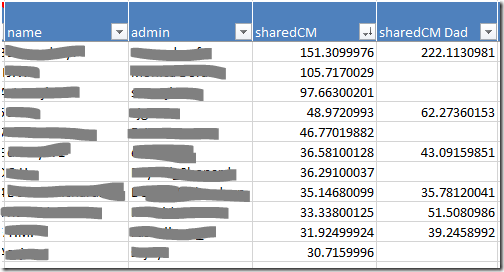
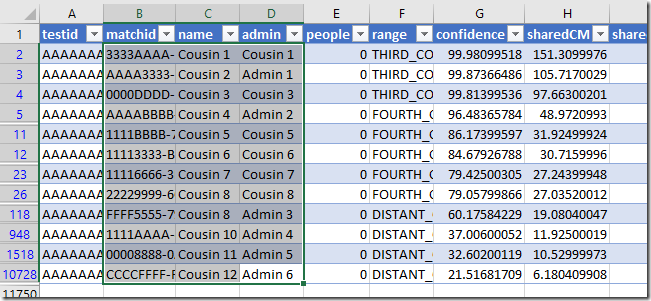
I’ve loaded my kit and my father’s kit into one worksheet. A simple edit to the matches file before loading created a new column for my father’s sharedCM values.

image

I did some quick calculations to find out how many matches we have in common. I match 50% of my father’s 4th or closer cousins. Including all the distant cousins we have a combined total of 18,889 matches – only 15% of the grand total is shared. Exercise caution if adding distant cousins!

In-common-with file

The in-common-with file will add lines representing DNA connections to your graph.

Loading an in-common-with file will also add people who are related to the additional kit’s subject. If your goal is to research the family tree of the focus person (‘you’), the best kits to load are those belonging to relatives who have some of the same ancestors as you, but no ancestors that you don’t have.

Many of the people you ‘skipped’ are prime candidates:

  • Full siblings
  • Parents
  • Aunts and uncles
  • Grandparents

This doesn’t mean that you should never load the in-common-with file for someone who has ancestors you don’t. Combining a kit with a half sibling may help you work out which matches are ‘yours, mine, or ours’. 

If you don’t load the in-common-with file you can still load the matches file to place the sharedCM values side by side as I have.

Load the ICW file

Loading the in-common with file for additional kits is easy. Simply load it in exactly as you have done before.

  • NodeXL basic ribbon, Import button, From Open Workbook…
  • Select the file in the top box
  • Under Is Edge Column tick ‘matchid’ and ‘icwid’
  • Which edge column is Vertex 1: matchid
  • Which edge column is Vertex 2: icwid


Matches file

When loading matches for an additional kit the data loaded for shared matches will overwrite existing data.

The name and admin columns have the same information regardless of which kit they match so nothing is lost by reimporting these for another person. In fact, it’s better if you do import them, otherwise you won’t know who the new matches are. 

Columns such as range, sharedCM, note and matchURL differ from kit to kit. If you want to import any of these columns (I’d import sharedCM at minimum) you’ll need to make a few minor edits to the import file first.

Prepare the matches file

  • Open the match file m_AdditionalKitName.csv
  • Save a copy with a different name. m_AdditionalKitName_edited.csv will do.
  • The matchid, name and admin columns should be left alone.
  • For any other column you want to import, change the column header to indicate whose information it is.
    For example, ‘sharedCM’ might become ‘sharedCM John’. Keep it simple because next time you update the file you’ll need to enter it in exactly the same way.
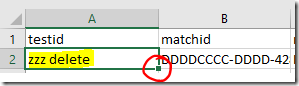
  • Choose the first value in the testid column and change it to ‘zzz delete’. Then double click on the little square in the corner of the cell to copy it all the way down the sheet. This step isn’t strictly necessary but it only takes a few seconds and will make it easier to remove extra lines not needed for the graph.
    image
  • Save the file, but don’t close it yet.


Load the matches file

  • NodeXL basic ribbon, Import button, From Open Workbook…
  • Select the file in the top box
  • Under Is Edge Column tick ‘testid’ and ‘matchid’
  • Under Is Vertex 2 Property Column tick:
    • name
    • admin
    • any other columns you wish to import (remember if the column name matches a column already present the information will be overwritten)
  • Which edge column is Vertex 1: testid
  • Which edge column is Vertex 2: matchid


Remove unwanted matches

If you decided not to load the in-common with file, you may prefer to remove matches who don’t share DNA with you. You’ll find them at the bottom of the Vertices sheet. There won’t be any information in your own sharedCM column for those people.

Housekeeping

A few clean up tasks will make sure the graph is ready for more work.

Clean up the Edges

  • If you loaded an in-common-with file, remove duplicates (NodeXL ribbon, Prepare data button).
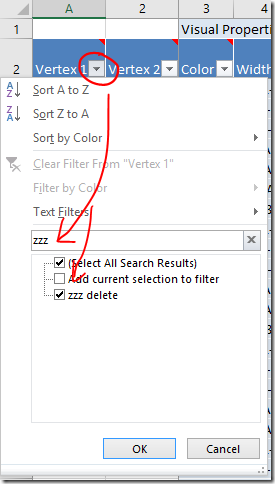
  • On the Edges worksheet, sort the Vertex 1 column from smallest to largest using the dropdown on the column header.
  • Filter the Vertex 1 column to only show ‘zzz delete’ entries.
    image
  • Highlight those lines and delete them.
  • Clear the filter afterwards.

Excel tips:

  • To quickly select a range of rows, select the top cell you want to include. With the Shift key held down, tap the End key and then the Down arrow.
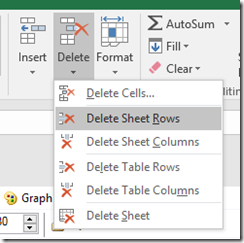
  • To delete rows, move to the Home ribbon and click the Delete button. Choose either Delete Sheet Rows or Delete Table Rows.
    image

Clean up the Vertices

There should only be one row labelled  ‘zzz delete’ to get rid of and it will be at the very bottom of the Vertices sheet. Sort the column to find it if not. You can get rid of it, or just enter ‘Skip’.

Fix up the dot sizes

Earlier, we sized the dots according to the value in the sharedCM column so that we would have a visual indication of how close the relationship with the match is. Now that you have two (or more!) sharedCM columns it’s very likely that they are scattered with blank cells. All those dots will be the default dot size.

The easiest option is to set all the dots to the same size by using the Autofill columns button to clear the size column.

Personally, I prefer having larger and smaller dots. To fill in the blanks, I added a new column to the Vertices worksheet with a formula that returns the larger of the two sharedCM values. To do this I used the MAX function. The AVERAGE function might be a good option if you have loaded several siblings.

  • Add a column to the Vertices sheet by entering a new column heading in the first empty cell in the heading row. ‘New Size’ will do for a heading.
  • Select the first empty cell in the new column.
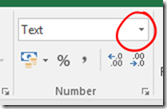
  • Move to the Home ribbon and change the cell format from ‘Text’ to ‘General’.
    image
  • Enter your preferred formula (see below if you need help). It should automatically fill in all the way down the table.

When you’re happy with the formula, use the Autofill columns button to transfer the content of your new column into the Vertex Size property.

Excel tip:

To enter the MAX or AVERAGE formula, start by typing in the formula name and an opening bracket:

=MAX( 

Then click on each cell (type a commas in between each click) that the calculation should use. You can enter as many elements as you want. Make sure you’re clicking in the same row as your formula. Finish off by entering a closing round bracket. It will look something like this:

=MAX([@sharedCM],[@[sharedCM Dad]])

Or type:

=MAX(AF3,AG3)

(check the cell references match your sheet).

Important note: Formulas and PC performance

Usually when you enter a formula in Excel it calculates so quickly that the result seems to pop up instantaneously. When you make a change in a worksheet any dependant cells (and their dependant cells and so on down the line) are recalculated in the blink of an eye.

We’ve just entered a formula all the way down a long table. This shouldn’t pose too much of a problem…. until it does. It might be when you run the grouping calculations again, or next time you load new data. With potentially tens of thousands of cells to recalculate those fractions of a second start to add up and Excel may stop responding.

There are two options to choose from that will lighten the load.

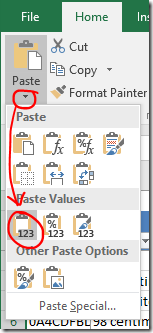
  1. Replace the formula with values: Highlight the column, Copy. Paste as values.
    image
    If you choose option 1, you’ll need to recreate the formulas when you load new data.

    OR

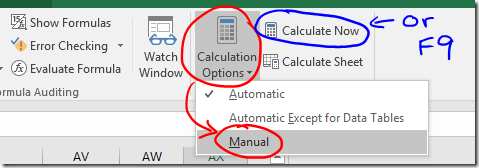
  2. Stop Excel from automatically calculating. You’ll find Calculation Options on the Formulas ribbon.
    If you do this you will need trigger recalculation of the worksheet yourself when required, either by pressing the Calculate Now button, or by pressing F9 on the keyboard.
    image
    The calculation choice will be saved with the worksheet. Be aware that any other worksheet that is open at the same time will also be affected, and the calculation choice saved for them as well. Also, the setting saved in the first workbook opened in any session is then applied to any other workbooks opened in the same session! It’s probably better to check the setting before you do anything with heavy calculations… and…. if you choose this option, remember what you have done! Formulas may look like they are working when you fill them in, but they won’t calculate correctly until you press F9.
    (In practice it’s not all quite so troublesome as it sounds).

Run clustering calculations

Did you read the important note about PC performance? Hopefully one column of formulas won’t be too much of a strain, but if you have any doubt please take one of the actions above, just in case!

Re-run the clustering algorithm of your choice and lay the graph out once more.

Explore!

In the next post I’ll show you how to colour code your matches.

Friday, August 4, 2017

Visualising Ancestry DNA matches-Part 8-Adding known ancestors

Ready for the next step? If you need to catch up, refer to the index to find your way.

So far all of the dots on the graph represent individuals, and the lines represent (believed) DNA connections. What if we expanded our idea of what the dots on the graph could represent to include ancestral couples? Then we could draw lines (which still represent DNA linkages) between matches and their known ancestors.

Example

imageJohn Tregonning and Mary Isaac are my 3xgreat-grandparents. They are also known ancestors for one of my matches. I’ve added a marker for this ancestral pair, and a line connecting their other known descendant to the marker.

I noticed that one of the other matches in the same group descended from a David Isaac – the surname caught my eye. Through a combination of building trees up and down, and by contacting private and no-tree owners, I learned that at least five matches from this group descend from David Isaac and Maryann Coomb via various of their children. I decided to also add David Isaac and Maryann Coomb to my graph as it seems likely that I have some sort of DNA connection to them.

In a perfect world where everyone had complete public trees with consistent spelling, David Isaac and Maryann Coomb should appear on Ancestry as “New Ancestor Discoveries” (except that in a perfect world they would be “New Relative Discoveries”). It’s not a perfect world and I don’t expect that kind of hint to pop up on Ancestry any time soon.

Using the graph this way helps me to not only find that information but to keep track of and visualise what I’ve found.

Adding the information

Although you can add people and relationships directly to the graph file I prefer to compile the information in a separate file (the Additional Input file) and then import it. If something goes wrong it’s much easier to delete some lines, correct a small file and reload than to unscramble a file with ten of thousands of rows.

I’ve provided instructions for both methods. I find that compiling the Ancestry match IDs is the most difficult part of the process – I’ve also provided some instructions for a shortcut that may help in making the match ID list.

Method 1: Additional Input file method

Enter the following information in the Additional Input file:

  • matchid : match’s AncestryID
  • Match name : match’s name (for reference only, not loaded)
  • Match admin : match’s admin (for reference only, not loaded)
  • Vertex 2 : ancestor’s name eg ‘John Tregonning and Mary Isaac’
    If you enter the same ancestor(s) for multiple matches, make sure the spelling, punctuation and spaces are exactly the same each time.
  • Name : as for Vertex 2
  • Vertex Type : ‘Ancestor’
  • Edge Type : ‘Ancestor’
  • If you would like to be able to apply labels for only ancestors (not for everyone) add an extra column to the file called Ancestor Label and enter their names in that column as well. image

There is some repetition here, but it will give us flexibility to do other things later.

When you import the file (NodeXL Basic ribbon, Import button, From Open Workbook…. option) choose the following options:

  • Columns have headers box should be ticked.
  • Under Is Edge Column select these (and no others)
    • matchid
    • Vertex2
    • Edge type
  • Under Is Vertex 2 Property Column select these (and no others)
    • Name
    • Vertex Type
    • Visibility (not necessary if you don’t need to update the ‘Skip’ lines for anyone)
    • Ancestor label
  • Which edge column is Vertex 1? dropdown ‘matchid’
  • Which edge column is Vertex 2? dropdown ‘Vertex 2’

Rerun the grouping and refresh the graph to see the new elements.


Method 2: Direct entry method

To add points to the graph manually you will need to add a row on the Edges worksheet for each DNA connection you want to make. That row needs two identifiers: one for the match and one for the ancestor(s). 

  • Move to the bottom of the Edges worksheet (see tip below)
  • Enter the Ancestry ID for your DNA match in a new row under the Vertex 1 column.
  • The second identifier (Vertex 2 column) should be an identifier for the known ancestor(s). Since they don’t already have an identifier just use their names – eg ‘John Tregonning and Mary Isaac’.

It doesn’t matter which identifier is Vertex 1 and which is Vertex 2, this just happens to be the convention I’ve settled on. That’s enough to create the relationship. When you refresh the graph a new row will automatically be created on the Vertices worksheet.
A little extra information will help us find those lines again if we need to and will give us more flexibility later.

  • On the Edges worksheet:
    • Add a column called Edge Type, and set the value to ‘Ancestor’ for these matches.
      image
  • On the Vertices worksheet,
    • If you haven’t refreshed the graph yet create a line for each Ancestral pair, then
    • Add the ancestor identifier (ie their names) to the Vertex column AND the Name column.
    • Add a column called Vertex Type and set the value to ‘Ancestor’ for the appropriate rows.
    • If you would like to be able to apply labels for only ancestors (not for everyone) then add another column called Ancestor Label to the Vertices worksheet and enter the ancestor identifier (ie their names) there as well.
      image

When you’re trying to link data, spelling and punctuation matter! Make sure that you enter the ancestor names 100% consistently across your matches and the two sheets.

Rerun the grouping and refresh the graph to see the new elements.

Excel tips:

To add a column, just type a label that will become the column header in the first empty cell in row 2.

To quickly move all the way to the bottom of a full column: Select any cell in the column. On your keyboard tap the End button and then the down arrow.

Shortcut for assembling Ancestry match IDs

I find that the hardest part is assembling all those Ancestry match IDs. You may be able to speed up the process by extracting the list of match IDs from your match list.

  • If using the Additional Input file (or refer to Part 2 to create one), open it up so that it is ready and waiting.
  • Open the matches file “m_YourName.csv”
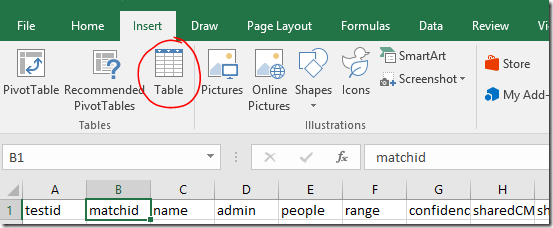
  • Select any cell within the table area. On the Insert ribbon, click Table.
    image
  • The appropriate range will be automatically selected. Make sure My table has headers is checked, and click OK.
    image
  • The appearance of the table will change and drop down filters will appear on each column header.
  • Use the drop down on the Hint column to filter for matches with a shared ancestor hint.
    image
  • Click and drag (or click and Shift-Click) to highlight all the visible rows for the matchid, name and admin columns.
  • Copy
    image
  • Switch back to the Additional input file and Paste these into the first available empty cell under matchid.
    image

Fill in the other columns as above.

Additional tip: You could filter the list to see details for people with notes, or who have the value TRUE in the ‘starred’ column, depending on how you’ve been using these.

Formatting and labelling

We added a column called Ancestor Label which contained duplicated name information. The purpose of this was to allow you to leave name labels off for your matches, but show them for ancestors if you wish. To apply the name labels use the Autofill Columns button.

Labelling tip: If you want to remove existing labels, click the arrow next to the drop down and you will find an option to clear the label column (you won’t see the change until you refresh the graph). image

I’ve applied different formatting to the Ancestor markers and lines so that it will be clear to me what they are. We’ll go into other methods in a future post – but for now you can alter them using the same method as described in the previous post.

  • Select any rows on the Vertices worksheet that contain ancestors (it may be helpful to sort the Vertex Type column if they are not all together).
  • Right click a highlighted line on the chart to access the right click menu.
  • Click Edit Selected Edge Properties… for line formatting options.
  • Select the rows again if you need to.
  • Right click a highlighted dot to access the right click menu again and click Edit Selected Vertex Properties… for marker formatting options
    OR
    Make the changes using buttons on the NodeXL ribbon.
    image

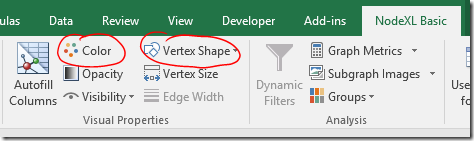
I set the edge Style to ‘dot’, and the vertex Shape to ‘label’ in the example at the start of this post.

Applying the marker changes

If you’ve been following along, you’ll find that the Edge colour changes work, but Vertex colour and shape changes don’t. There’s a setting that will fix that.

To use your selected Vertex colours and shapes:

  • Select the Groups dropdown on the NodeXL Basic ribbon.
    image
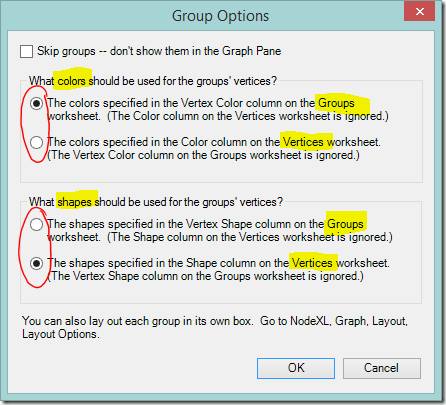
  • You’ll see an options box that directs NodeXL Basic whether to use colours and shapes from the Groups sheet, or to take them from the Vertices worksheet. If you use colours from the Vertices worksheet you’ll lose the rainbow of group colours but gain the ability to choose your own colours point by point. Shapes work similarly.
  • I elected to keep the bright group colours for now.
  • I wanted to change the shape of the marker so I changed the option under What shapes should be used for the groups’ vertices? and clicked OK.
    image

More ideas, and next steps

If you’re feeling adventurous, you might like to try adding points for non-person information such as a particular place, an unusual surname, or even an ethnicity. I’ve played with doing this. It worked quite well if the value being linked was uncommon  (‘Smith’ was a disaster!!) but ultimately I decided that colour coding these values (coming soon!) worked better for me.

The next posts are the ones that I’m really excited about showing you! They’re what I’ve been building to all this time. First we’re going to think about combining the kits we manage. Then we’ll move on to colour coding – I’ll show you how to set up colour coding schemes and switch between them at will.